How to fix mic & sound issues in PhoenixOS Darkmatter

You can follow this simple video guide to fix your no sound & mic issues in Phoenix OS Darkmatter

[Points to remember]

#1 You don't need to Edit you init.sh file to add alsa presets.


#2 you can apply alsa_preset using gearlock app >> option 8>> option 4 >> select any preset (1-4) & do reboot to test it.

#3 you can also goto to following location and edit the "alsa_preset" file
"#/system/phoenixos_darkmatter/gearboot/boot-comp "
"in DM 4.4"

"#/system/ghome/gearboot/boot-comp " "in DM 4.5 & above"

#4 you can also download my Custom Presets from following Download link.

#5 if you have USB headset then use soundabout app & set it to USB Host.

#6 For pubg mic related issues over USB headset just connect the USB first, launch the game then connect 3.5mm jack after you have enable team sound & mic sound. also make sure to use soundabout app for USB headset.

#7 If you are getting low mic volume or bad mic volume than change the ["internal mic boost " 0 ] value to 1/2/3.
higher the value more will be sound & noise.

#7 if nothing works for you & you've 3.5mm audio headset then last thing you can do is use my custom preset "alsa_preset [AIO]" & reboot your pc.


[ALSA Download Links]


[Alternative App]

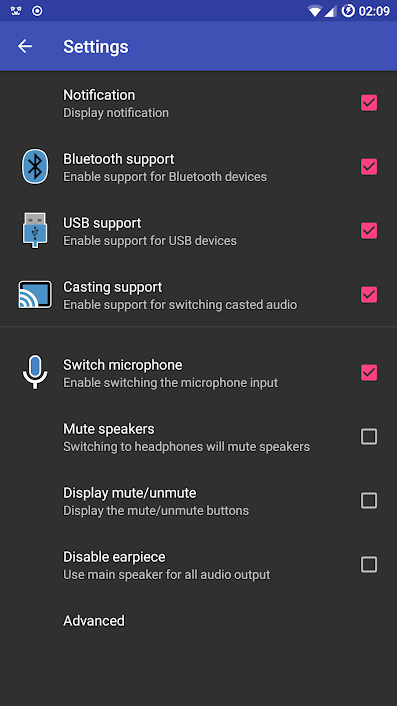
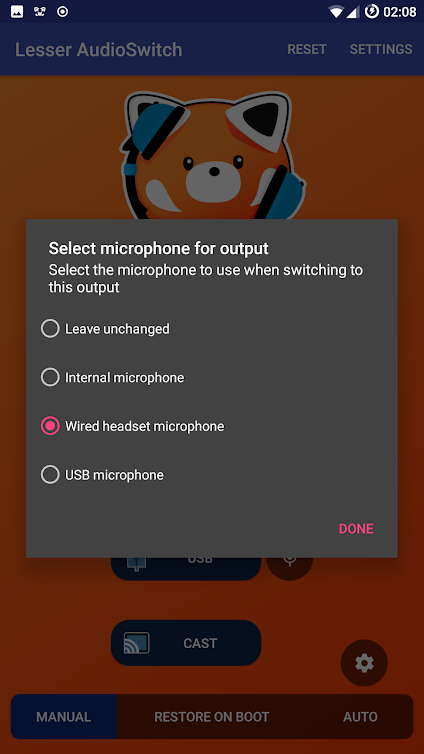
You can also try Lesser AudioSwitch App form play store if soundabout doesn't work for you

unnamed.jpg
unnamed-_2_.jpg
unnamed-_1_.jpg


Please comment with your headphone name & model below if your headset is not supported on any android x86 build.
 

Attachments

  • 1580488278580.png
    1580488278580.png
    680.9 KB · Views: 8,174
Last edited:

nklowns

New member
VC
42
I was unable to configure it so that the microphone is that of my usb adapter, only the internal microphone of the notebook.
my microphone is one with separate inputs, then I use an adapter usb.


After your idea to modify the presets, I took a look, and made mine manually
Here is my entire preset, there are a lot of settings off because they are for specific hardware
Code:
for c in $(grep '\[.*\]' /proc/asound/cards | awk '{print $1}'); do
    f=/system/etc/alsa/$(cat /proc/asound/card$c/id).state
    if [ -e $f ]; then
        alsa_ctl -f $f restore $c
        alsa_amixer -c $c set Speaker 50%
    else
        alsa_ctl init $c

        alsa_amixer -c $c set Master on
        alsa_amixer -c $c set Master 100%
        alsa_amixer -c $c set Headphone on
        alsa_amixer -c $c set Headphone 100%
        alsa_amixer -c $c set Speaker 100%
        alsa_amixer -c $c set Capture 100%
        alsa_amixer -c $c set Capture cap

        alsa_amixer -c $c set PCM 100 unmute
        alsa_amixer -c $c set SPO unmute
        alsa_amixer -c $c set IEC958 on

        alsa_amixer -c $c set 'Input Source',0 'Internal Mic'

        alsa_amixer -c $c set Mic off
        alsa_amixer -c $c set Mic 100%
        alsa_amixer -c $c set 'Mic Boost' 0
            
        alsa_amixer -c $c set 'Internal Mic' on
        alsa_amixer -c $c set 'Internal Mic' 100%
        alsa_amixer -c $c set 'Internal Mic Boost' 1
            
        alsa_amixer -c $c set 'Inverted Internal Mic' off
        alsa_amixer -c $c set 'Inverted Internal Mic' 100%
        alsa_amixer -c $c set 'Inverted Internal Mic Boost' 0

        alsa_amixer -c $c set 'Rear Mic' off
        alsa_amixer -c $c set 'Rear Mic' 100%
        alsa_amixer -c $c set 'Rear Mic Boost' 0

        alsa_amixer -c $c set 'Front Mic' off
        alsa_amixer -c $c set 'Front Mic' 100%
        alsa_amixer -c $c set 'Front Mic Boost' 0
            
        alsa_amixer -c $c set Line off
        alsa_amixer -c $c set Line 100%
        alsa_amixer -c $c set 'Line Boost' 0

        # Capture Switchs
        alsa_amixer -c $c cset name='Internal Mic Capture Switch' on
        alsa_amixer -c $c cset name='Inverted Internal Mic Capture Switch' off

        alsa_amixer -c $c cset name='Mic Capture Switch' off
        alsa_amixer -c $c cset name='Headset Capture Switch' off
        alsa_amixer -c $c cset name='Mono ADC Capture Switch' off
        alsa_amixer -c $c cset name='ADC Capture Switch' off
        
        # Headphones
        alsa_amixer -c $c cset name='Headphone Switch'  off
        alsa_amixer -c $c cset name='Speaker Switch' off
        alsa_amixer -c $c cset name='HP Channel Switch' off
        alsa_amixer -c $c cset name='HPO MIX HPVOL Switch'  off
        alsa_amixer -c $c cset name='DAC MIXL INF1 Switch'  off
        alsa_amixer -c $c cset name='DAC MIXR INF1 Switch'  off
        alsa_amixer -c $c cset name='Stereo DAC MIXL DAC L1 Switch'  off
        alsa_amixer -c $c cset name='Stereo DAC MIXR DAC R1 Switch'  off
        alsa_amixer -c $c cset name='Stereo DAC MIXL DAC L2 Switch'  off
        alsa_amixer -c $c cset name='Stereo DAC MIXR DAC R2 Switch'  off
        alsa_amixer -c $c cset name='HP L Playback Switch' off
        alsa_amixer -c $c cset name='HP R Playback Switch' off
        alsa_amixer -c $c cset name='HP Playback Volume' 0
        
        # HeadsetMic
        alsa_amixer -c $c cset name='Headset Mic Switch' off
        alsa_amixer -c $c cset name='RECMIXL BST2 Switch' off
        alsa_amixer -c $c cset name='RECMIXR BST2 Switch' off
        alsa_amixer -c $c cset name='Stereo ADC MIXL ADC1 Switch' off
        alsa_amixer -c $c cset name='Stereo ADC MIXR ADC1 Switch' off
        alsa_amixer -c $c cset name='Mono ADC MIXL ADC1 Switch' off
        alsa_amixer -c $c cset name='Mono ADC MIXR ADC1 Switch' off
        
        # IN1-InternalMics
        alsa_amixer -c $c cset name='Internal Mic Switch' off
        alsa_amixer -c $c cset name='RECMIXL BST1 Switch' off
        alsa_amixer -c $c cset name='RECMIXR BST1 Switch' off
        alsa_amixer -c $c cset name='RECMIXL BST3 Switch' off
        alsa_amixer -c $c cset name='RECMIXR BST3 Switch' off
        
        # DigitalMics
        alsa_amixer -c $c cset name='Stereo ADC MIXL ADC2 Switch' off
        alsa_amixer -c $c cset name='Stereo ADC MIXR ADC2 Switch' off
    fi
done
Post automatically merged:

It has a configuration option that I believe is the one that allows you to choose between the audio device.
the usb adapter was like device 2 on my notebook, but even changing to 2 nothing has changed and only the internal microphone is recognized.

Code:
alsa_amixer -c $c set 'Input Source',0 'Internal Mic'
 
Last edited:

boker

New member
VC
4
I already using alsa present 1 2 3 4. But the mic not working in discord and any game.
Headset type MSI Ds502
Post automatically merged:

I already using alsa present 1 2 3 4. But the mic not working in discord and any game.
Headset type MSI Ds502
7.1
 

MrLeo

New member
VC
4
Hello
i have problem with my USB headset on phoenix os dark matter,i try to fix but no :(
my headset RAMPAGE MESH PLUS 7.1 GAMİNG HEADSET,
Please help my problem.
 

zeher

New member
VC
6
thank u for ur helping,i watched already video
i have problem sound too low i try many methot but cant fix it.
anybody can help my problem?
you can boost your sound from ini.sh file..there is a line for boosmicvolumn or something like that check other resources before doing that
 

Haseeb127

New member
VC
8
Hi !
How are you!
I am having a problem with Darkmatter 4.7.Speakers are working but when i pluged headphones they didn't work.
So plz tell me solution.
When i run windows or dark matter 4.6 they worked
I will be very thankfull to you
Thanks!
 

saadm

New member
VC
8
please guys i have problem after install some gearlock extensions when i try to play some song sound getting slow thanks and sorry for my english
 

dibba

New member
VC
2
You can follow this simple video guide to fix your no sound & mic issues in Phoenix OS Darkmatter

[Points to remember]

#1 You don't need to Edit you init.sh file to add alsa presets.


#2 you can apply alsa_preset using gearlock app >> option 8>> option 4 >> select any preset (1-4) & do reboot to test it.

#3 you can also goto to following location and edit the "alsa_preset" file
"#/system/phoenixos_darkmatter/gearboot/boot-comp "
"in DM 4.4"

"#/system/ghome/gearboot/boot-comp " "in DM 4.5 & above"

#4 you can also download my Custom Presets from following Download link.

#5 if you have USB headset then use soundabout app & set it to USB Host.

#6 For pubg mic related issues over USB headset just connect the USB first, launch the game then connect 3.5mm jack after you have enable team sound & mic sound. also make sure to use soundabout app for USB headset.

#7 If you are getting low mic volume or bad mic volume than change the ["internal mic boost " 0 ] value to 1/2/3.
higher the value more will be sound & noise.

#7 if nothing works for you & you've 3.5mm audio headset then last thing you can do is use my custom preset "alsa_preset [AIO]" & reboot your pc.


[ALSA Download Links]


[Alternative App]

You can also try Lesser AudioSwitch App form play store if soundabout doesn't work for you

View attachment 145 View attachment 146 View attachment 147


Please comment with your headphone name & model below if your headset is not supported on any android x86 build.
whenever I open zoom cloud meetings and join a meeting the sound changes o popping sound and it sounds like your system is burning
i need to attend my classes please do something
 

Night

Supreme
Moderator
Blog Author
whenever I open zoom cloud meetings and join a meeting the sound changes o popping sound and it sounds like your system is burning
i need to attend my classes please do something
join discord for any help or suggestions people aren't that active on website forums.
 

onasre40

New member
VC
4
no sound at all . i tried all the preset method , 1,2.3.4.5... i use the latest build DarkMatter_Exo4.7_BETA-2
its windows tablet from hp module pro 408 g1 , its atom cpu ..with Realtek I2S Audio
 

Attachments

  • WhatsApp Image 2021-05-02 at 1.32.22 PM.jpeg
    WhatsApp Image 2021-05-02 at 1.32.22 PM.jpeg
    93.8 KB · Views: 730

Night

Supreme
Moderator
Blog Author
tried all the preset method , 1,2.3.4.5... i use the latest build DarkMatter_Exo4.7_BETA-2
its windows tablet from hp module pro 408 g1 , its atom cpu ..with Realtek I2S Audio
goto gearlock extensions & run alsamixer tool check if you can see your sound card there if yes then enable it if this doesn't work then update your kernel & see if it has your audio driver.
you can also google your driver name & see which linux kernel has support for it.
 

onasre40

New member
VC
4
Thank you for your help , i tried alsamixer tool and seems it is not detected any audio card but bytcr-rt5640 file ..
on the older build of phoenix os 3 it was detected(See Previous Image) as hdmi lpe audio intel hdmi/dp lp audio . but no sound there too. With Darkmatter Version is not detected .. i tried flashing all suggested kenals but no lock still not detected ... i give up :(
 

Attachments

  • WhatsApp Image 2021-05-05 at 1.15.21 PM.jpeg
    WhatsApp Image 2021-05-05 at 1.15.21 PM.jpeg
    55.6 KB · Views: 757

hisoka465775

New member
VC
4
faço todo procedimento certinho mais nao acho a pasta darkmatter 4.7 uso um fone de ouvido normal de celular e caichinhas de som usb porem quando eu ativo a microfone no jogo free fire fica tudo mudo nao da pra ouvir nada
 
Top